We shipped four features in the last couple of weeks: a command palette for faster navigation, a pinned primary link, default and custom cover banners, and a public profiles page. Each one is small on its own. Together they make editing faster and the public profile more polished.
Here is what each feature does and why we built it.
Command palette
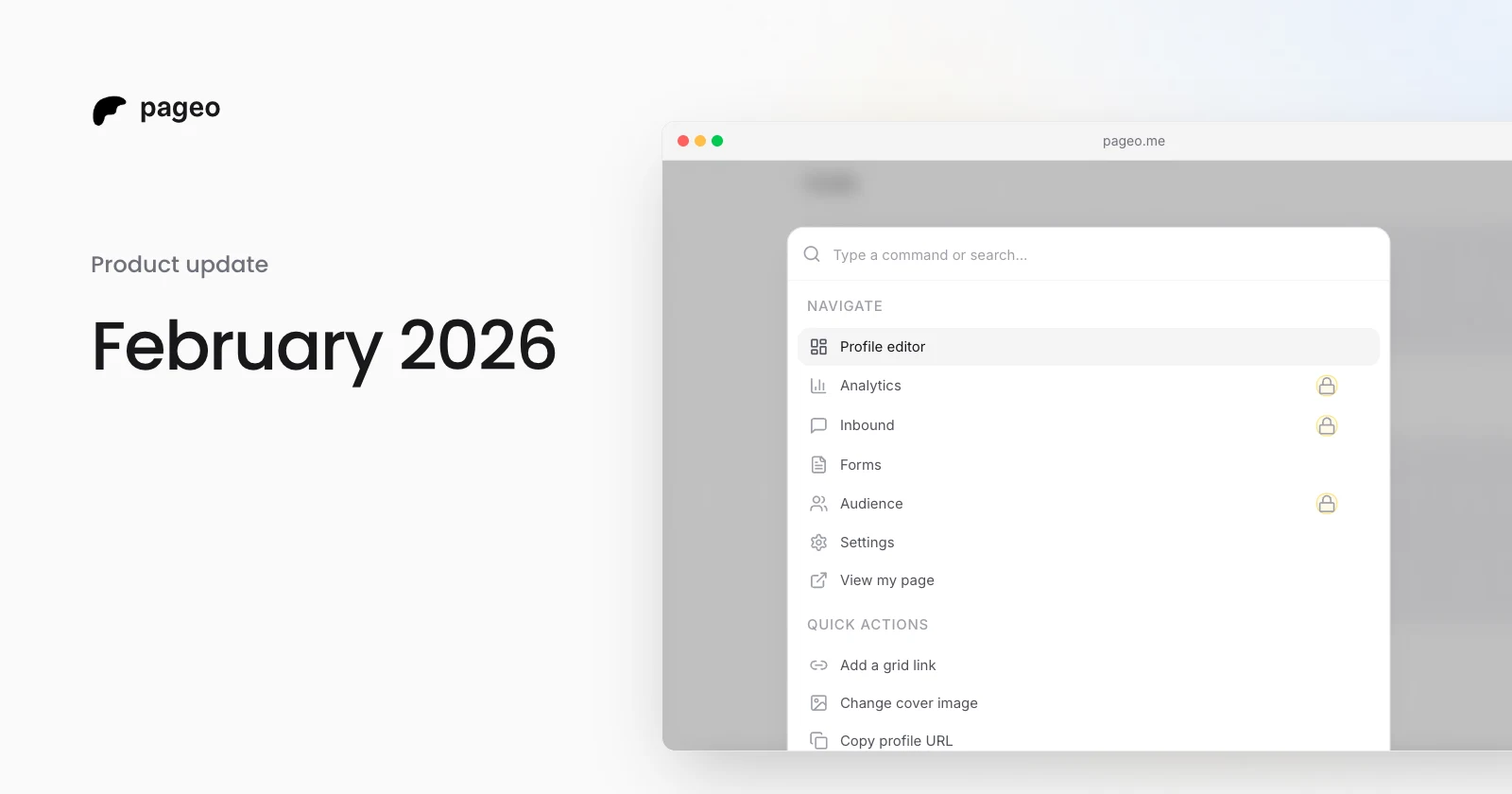
Press ⌘K on a Mac, or Ctrl+K on Windows, on any admin page to open a searchable command palette. It is one entry point for nearly everything you can do in the editor.
- Navigate. Jump to the profile editor, analytics, inbound, forms, audience, or settings, or open your public page. Pro pages show a lock icon if you are on the free plan.
- Jump to sections. On the editor, scroll straight to your profile, social links, contribution graph, grid links, map, or publish area.
- Quick actions. Change your username, add a link, edit your bio, change your photo or cover, add a social link, or open the layout panel. Each action opens the same dialog as the button, just faster.
- General actions. Copy your profile URL, share your page, send feedback, switch modes, or log out.
The palette filters as you type, so most things are two or three keystrokes away. It does not open while another dialog is open, so it never gets in your way.
Pin your primary link
Grid links are the large, visual tiles on your profile. You can now mark one of them as your primary link, your main call to action.
How it looks. The primary link gets a pin badge in its top-right corner, a slightly taller image, and a stronger shadow. It stands out from the other tiles without breaking the grid.
How to set it. When you add or edit a grid link, turn on Primary link at the bottom of the dialog. If another link is already primary, the toggle tells you which one it replaces. Only one link can be primary at a time.
Ordering. The primary link always comes first and stays in place. You can drag the other links around, and the pinned one stays at the top, so your most important link never gets buried by accident.
Pinning is optional. If you do not pin anything, all grid links behave as before.
Cover banners
Every profile now has a cover banner, the wide image at the top of your page above your name and bio.
Defaults included. New profiles get one of six ready-made banners at random, so your profile looks complete from day one. All six are in a picker if you want a different one.
Custom uploads. Want your own image? Upload it from the cover dialog, and crop it before you save.
Switching. Go from a custom upload back to a default banner anytime, or the other way around. Default banners skip the upload step, so switching between them is instant.
Cover banners are available on every plan.
Top profiles page
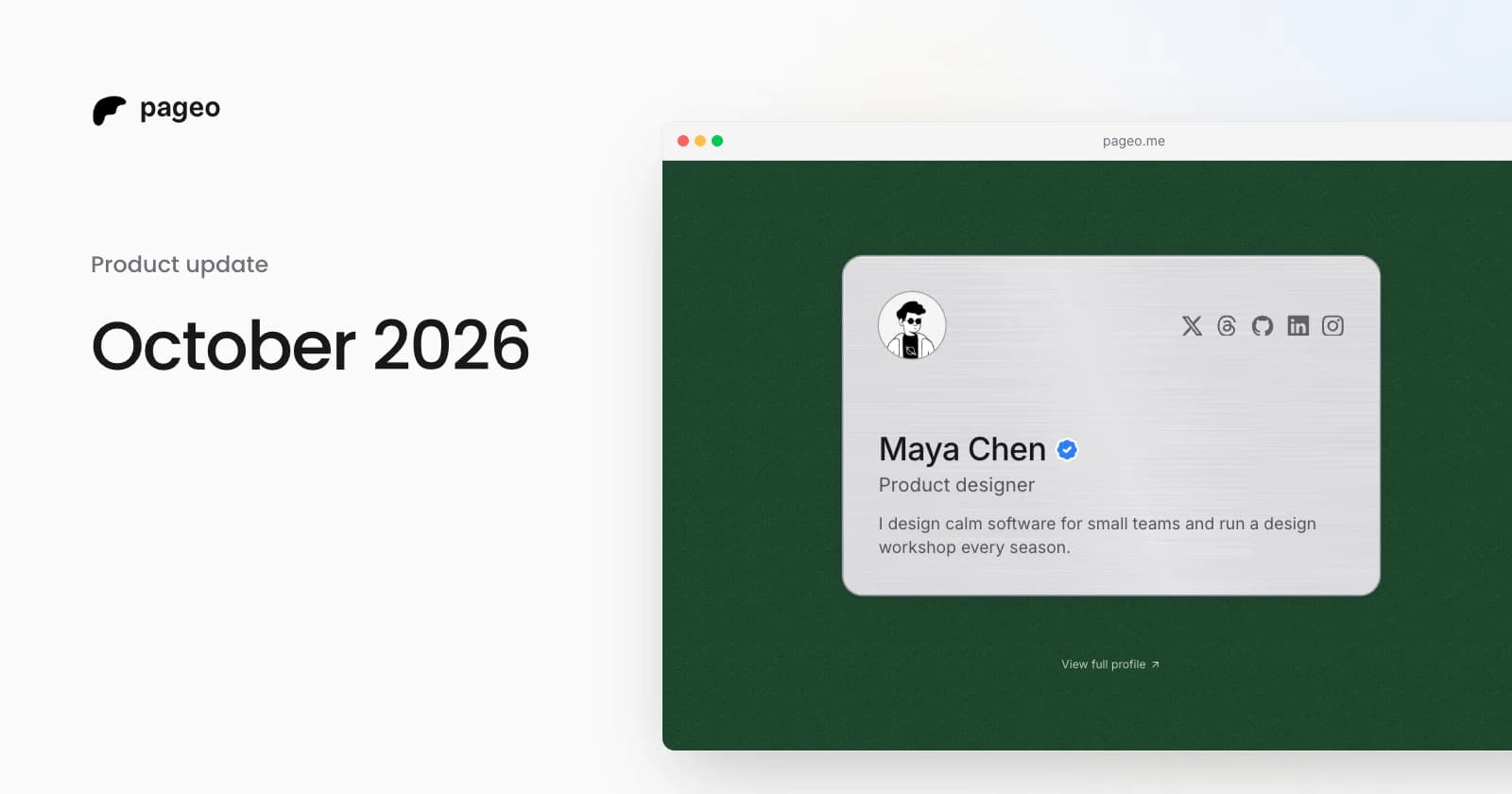
We added a profiles page that shows the most visited pageo profiles of the past seven days.
It is a ranked grid. Each card shows the person's name, role, profile image, and cover. Click a card to visit that profile. The ranking refreshes daily, so it always reflects recent traffic.
It is useful in two ways:
- If you are new to pageo, you get real examples of how people set up their profiles: what they link to, how they write their bios, and how they use grid links and social icons.
- If you already have a profile, it is a small reason to keep yours active and well kept.
The page is public, and no login is needed to browse it.
What is next
All four features are live now. If you have not tried the command palette yet, press ⌘K next time you are in the editor. If your profile does not have a cover banner or a pinned link yet, each takes less than a minute to set up.
We keep shipping improvements to the editor and the public profile. If you have feedback or ideas, use Send feedback in the command palette, or reach out on X.